> ## Documentation Index
> Fetch the complete documentation index at: https://docs.memeperfect.io/llms.txt
> Use this file to discover all available pages before exploring further.
# Twitter Handles
> Manage the authors used by tweet-based Triggers.
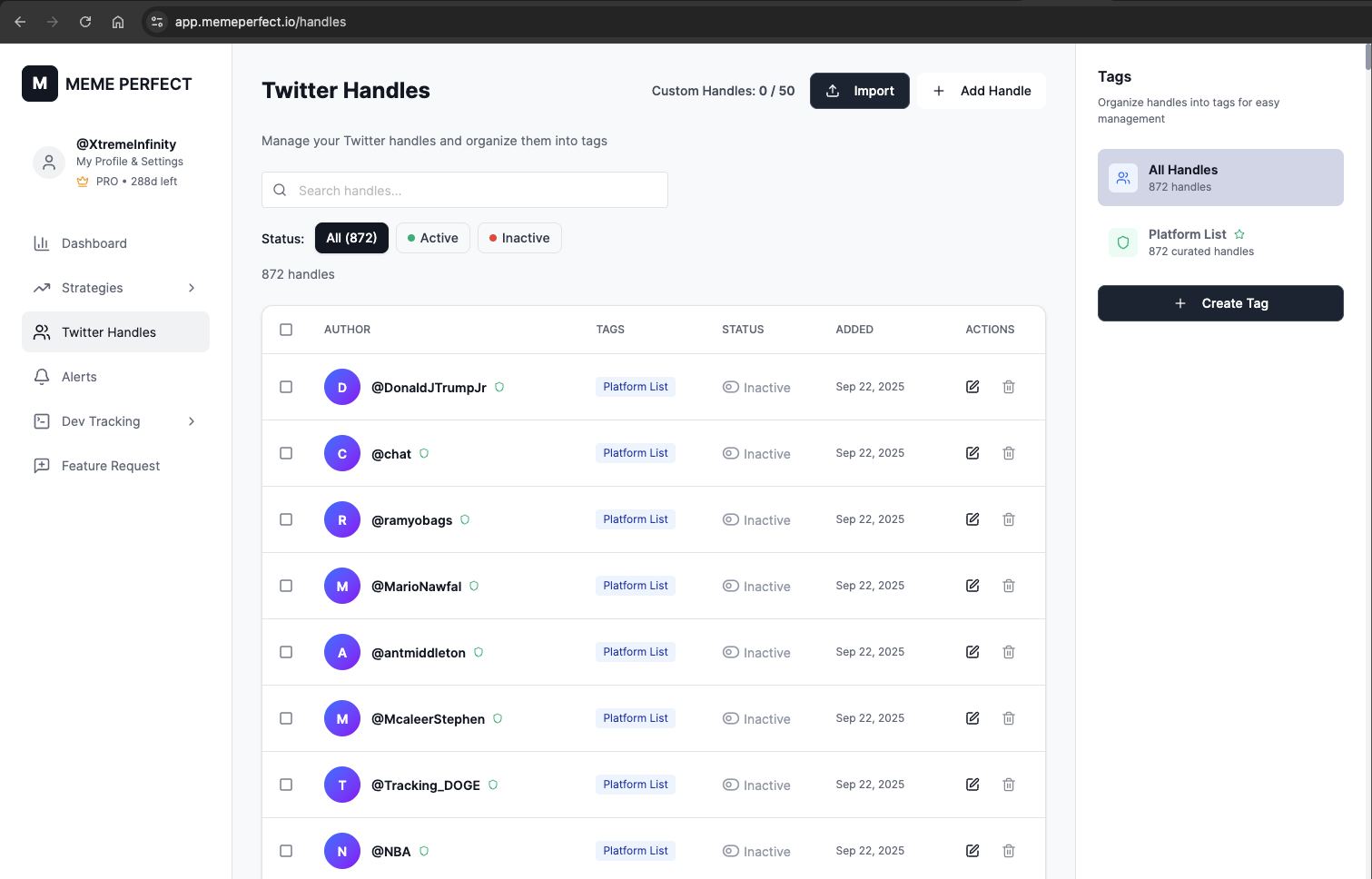
This page is the control center for tweet-based Strategies. Use it to maintain a reusable list of authors instead of adding handles one by one inside each Strategy.
 ## What you can do here
* add new handles
* enable or disable existing handles
* organize handles with tags
* update multiple handles at once
* import handles in bulk
## Why tags matter
Tags let you group authors so one list can be reused across multiple Strategies.
Examples:
* a tag for high-risk meme accounts
* a tag for higher-signal analysts
* a tag for theme-specific accounts
When you configure a tweet-based Trigger, you select a tag instead of selecting authors one by one.
## Create and manage tags
### Create a tag
1. Open **Twitter Handles**.
2. Click **Create Tag**.
3. Enter a name and optional description.
4. Save the tag.
### Assign tags to handles
For a single handle:
1. Find the handle.
2. Open the edit action.
3. Select the tags you want.
4. Save the change.
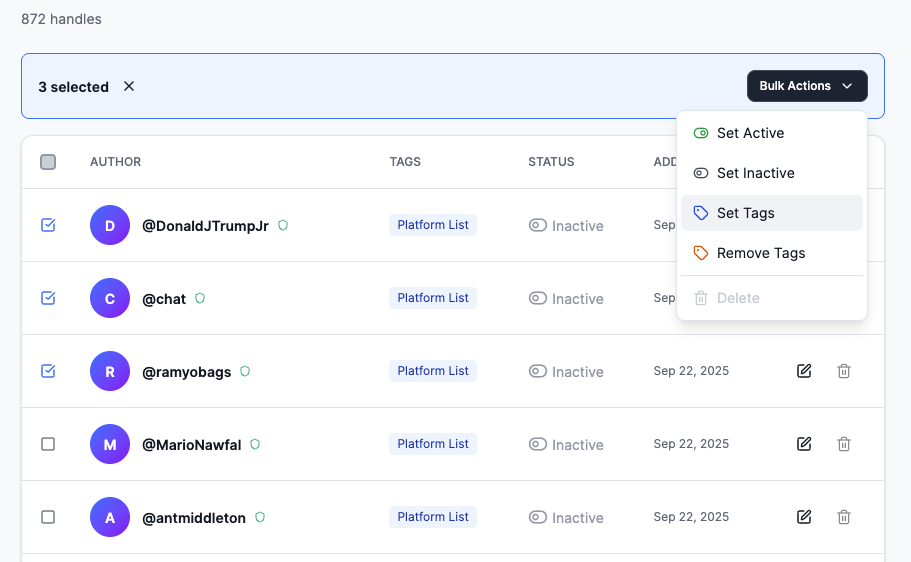
For multiple handles:
1. Enable bulk selection.
2. Select the handles you want to update.
3. Choose **Bulk Actions** -> **Set Tags**.
4. Apply the tags.
## What you can do here
* add new handles
* enable or disable existing handles
* organize handles with tags
* update multiple handles at once
* import handles in bulk
## Why tags matter
Tags let you group authors so one list can be reused across multiple Strategies.
Examples:
* a tag for high-risk meme accounts
* a tag for higher-signal analysts
* a tag for theme-specific accounts
When you configure a tweet-based Trigger, you select a tag instead of selecting authors one by one.
## Create and manage tags
### Create a tag
1. Open **Twitter Handles**.
2. Click **Create Tag**.
3. Enter a name and optional description.
4. Save the tag.
### Assign tags to handles
For a single handle:
1. Find the handle.
2. Open the edit action.
3. Select the tags you want.
4. Save the change.
For multiple handles:
1. Enable bulk selection.
2. Select the handles you want to update.
3. Choose **Bulk Actions** -> **Set Tags**.
4. Apply the tags.
 ## Add handles
### Add one handle
1. Click **Add Handle**.
2. Enter the username, with or without `@`.
3. Assign tags if needed.
4. Set the status.
5. Save.
### Import multiple handles
1. Click **Import Handles**.
2. Paste one username per line.
3. Apply optional tags.
4. Review the preview.
5. Confirm the import.
## Use tags in a Strategy
1. Create or edit a Strategy.
2. Go to **Step 2: Triggers**.
3. Add **Tweet Mentions Token** or **Tweet Metadata Match**.
4. Choose a tag from the trigger configuration.
## Add handles
### Add one handle
1. Click **Add Handle**.
2. Enter the username, with or without `@`.
3. Assign tags if needed.
4. Set the status.
5. Save.
### Import multiple handles
1. Click **Import Handles**.
2. Paste one username per line.
3. Apply optional tags.
4. Review the preview.
5. Confirm the import.
## Use tags in a Strategy
1. Create or edit a Strategy.
2. Go to **Step 2: Triggers**.
3. Add **Tweet Mentions Token** or **Tweet Metadata Match**.
4. Choose a tag from the trigger configuration.
 ### Step 2: Select a Tag
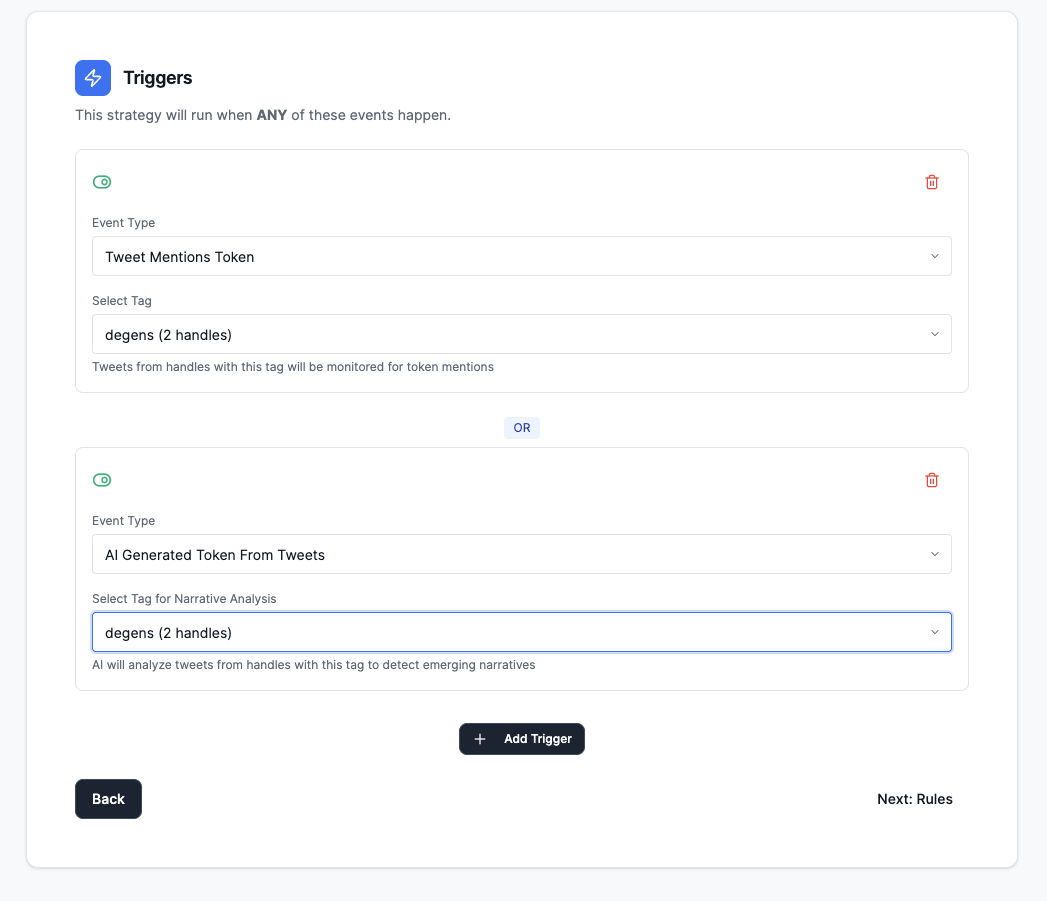
1. In the trigger configuration, find the **"Select Tag"** dropdown
2. Choose from:
* **"All Handles"**: Monitor all handles in your Twitter Handles (shows total count)
* **Tag Name**: Select a specific tag to monitor only handles with that tag (shows handle count)
3. The description below explains what will be monitored
**Example:**
* Select **"degen-plays"** tag → Strategy monitors tweets from all handles tagged as `degen-plays`
* Select **"serious-alpha"** tag → Strategy monitors tweets from all handles tagged as `serious-alpha`
* Select **"All Handles"** → Strategy monitors tweets from every handle in your Twitter Handles
## Tags in Practice
### Example Workflow: Creating Two Strategies
**Scenario:** You want to create two different strategies:
1. A "degen" strategy listening to high-risk meme accounts
2. A "serious" strategy listening to respected devs/analysts
**Step 1: Organize Handles with Tags**
1. Go to **Twitter Handles**
2. Create tags:
* `degen-plays` - for high-risk meme accounts
* `serious-alpha` - for respected developers and analysts
3. Assign handles to appropriate tags:
* Add meme coin influencers to `degen-plays`
* Add technical analysts to `serious-alpha`
**Step 2: Create the "Degen" Strategy**
1. Create a new strategy
2. In **Step 2: Triggers**, add trigger:
* Type: **"Tweet Mentions Token"**
* Tag: Select **"degen-plays"**
3. Configure rules (Step 3) appropriate for high-risk tokens
4. Save strategy
**Step 3: Create the "Serious" Strategy**
1. Create another strategy
2. In **Step 2: Triggers**, add trigger:
* Type: **"Tweet Mentions Token"**
* Tag: Select **"serious-alpha"**
3. Configure rules (Step 3) appropriate for more established tokens
4. Save strategy
**Result:**
* Both strategies run independently
* The "degen" strategy only monitors handles tagged `degen-plays`
* The "serious" strategy only monitors handles tagged `serious-alpha`
* You can add/remove handles from tags, and all strategies using those tags automatically update
### Tweet Metadata Match
Uses tweets from selected handles as a signal source for deterministic token metadata matching.
**Use Cases:**
* discovering launches that line up with tracked tweets before a clean direct mention exists
* monitoring theme-specific accounts whose tweets often map to real launches
* catching tokens whose metadata clearly overlaps with the language or links used in a tweet
**How It Works:**
1. The system stores tweet signals from handles in the selected tag.
2. When a new token launches, it compares the token metadata against those stored tweet signals.
3. A strategy can trigger when the overlap is strong enough.
### Step 2: Select a Tag
1. In the trigger configuration, find the **"Select Tag"** dropdown
2. Choose from:
* **"All Handles"**: Monitor all handles in your Twitter Handles (shows total count)
* **Tag Name**: Select a specific tag to monitor only handles with that tag (shows handle count)
3. The description below explains what will be monitored
**Example:**
* Select **"degen-plays"** tag → Strategy monitors tweets from all handles tagged as `degen-plays`
* Select **"serious-alpha"** tag → Strategy monitors tweets from all handles tagged as `serious-alpha`
* Select **"All Handles"** → Strategy monitors tweets from every handle in your Twitter Handles
## Tags in Practice
### Example Workflow: Creating Two Strategies
**Scenario:** You want to create two different strategies:
1. A "degen" strategy listening to high-risk meme accounts
2. A "serious" strategy listening to respected devs/analysts
**Step 1: Organize Handles with Tags**
1. Go to **Twitter Handles**
2. Create tags:
* `degen-plays` - for high-risk meme accounts
* `serious-alpha` - for respected developers and analysts
3. Assign handles to appropriate tags:
* Add meme coin influencers to `degen-plays`
* Add technical analysts to `serious-alpha`
**Step 2: Create the "Degen" Strategy**
1. Create a new strategy
2. In **Step 2: Triggers**, add trigger:
* Type: **"Tweet Mentions Token"**
* Tag: Select **"degen-plays"**
3. Configure rules (Step 3) appropriate for high-risk tokens
4. Save strategy
**Step 3: Create the "Serious" Strategy**
1. Create another strategy
2. In **Step 2: Triggers**, add trigger:
* Type: **"Tweet Mentions Token"**
* Tag: Select **"serious-alpha"**
3. Configure rules (Step 3) appropriate for more established tokens
4. Save strategy
**Result:**
* Both strategies run independently
* The "degen" strategy only monitors handles tagged `degen-plays`
* The "serious" strategy only monitors handles tagged `serious-alpha`
* You can add/remove handles from tags, and all strategies using those tags automatically update
### Tweet Metadata Match
Uses tweets from selected handles as a signal source for deterministic token metadata matching.
**Use Cases:**
* discovering launches that line up with tracked tweets before a clean direct mention exists
* monitoring theme-specific accounts whose tweets often map to real launches
* catching tokens whose metadata clearly overlaps with the language or links used in a tweet
**How It Works:**
1. The system stores tweet signals from handles in the selected tag.
2. When a new token launches, it compares the token metadata against those stored tweet signals.
3. A strategy can trigger when the overlap is strong enough.