
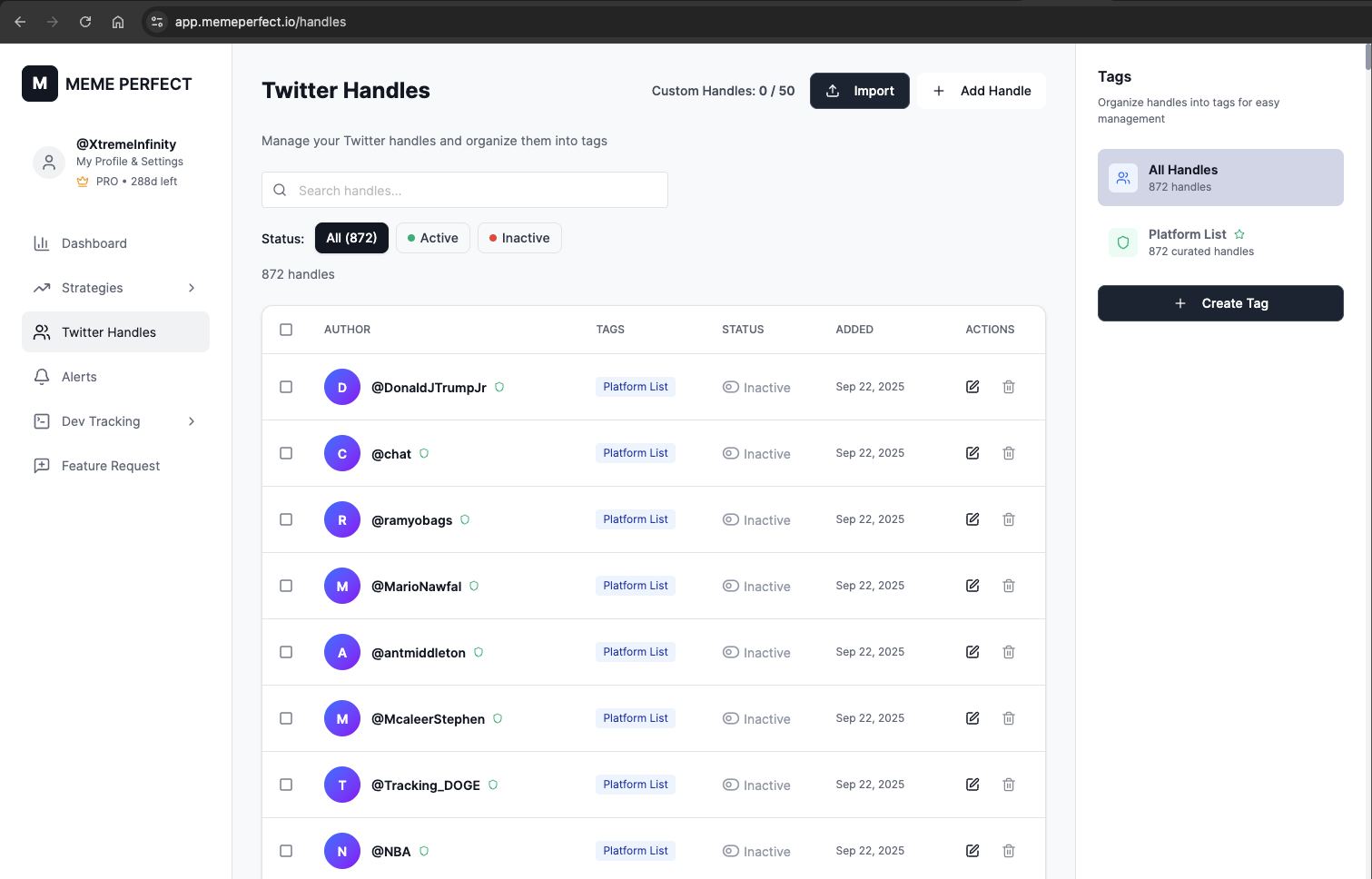
Twitter Handles stores your tracked authors, their status, and the tags used by tweet-based Triggers.
What you can do here
- add new handles
- enable or disable existing handles
- organize handles with tags
- update multiple handles at once
- import handles in bulk
Why tags matter
Tags let you group authors so one list can be reused across multiple Strategies. Examples:- a tag for high-risk meme accounts
- a tag for higher-signal analysts
- a tag for theme-specific accounts
Create and manage tags
Create a tag
- Open Twitter Handles.
- Click Create Tag.
- Enter a name and optional description.
- Save the tag.
Assign tags to handles
For a single handle:- Find the handle.
- Open the edit action.
- Select the tags you want.
- Save the change.
- Enable bulk selection.
- Select the handles you want to update.
- Choose Bulk Actions -> Set Tags.
- Apply the tags.
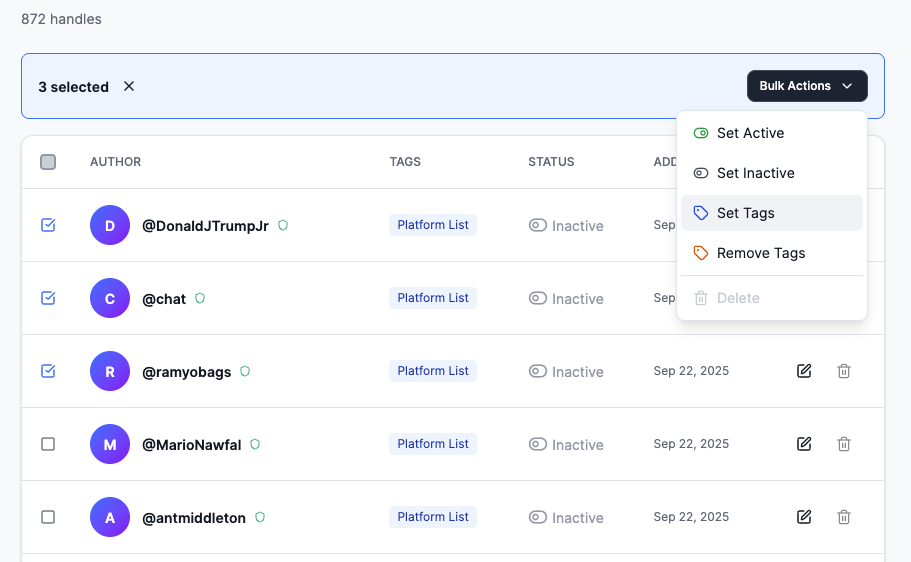
Bulk tag updates let you reorganize handle groups without editing each row one by one.
Add handles
Add one handle
- Click Add Handle.
- Enter the username, with or without
@. - Assign tags if needed.
- Set the status.
- Save.
Import multiple handles
- Click Import Handles.
- Paste one username per line.
- Apply optional tags.
- Review the preview.
- Confirm the import.
Use tags in a Strategy
- Create or edit a Strategy.
- Go to Step 2: Triggers.
- Add Tweet Mentions Token or Tweet Metadata Match.
- Choose a tag from the trigger configuration.
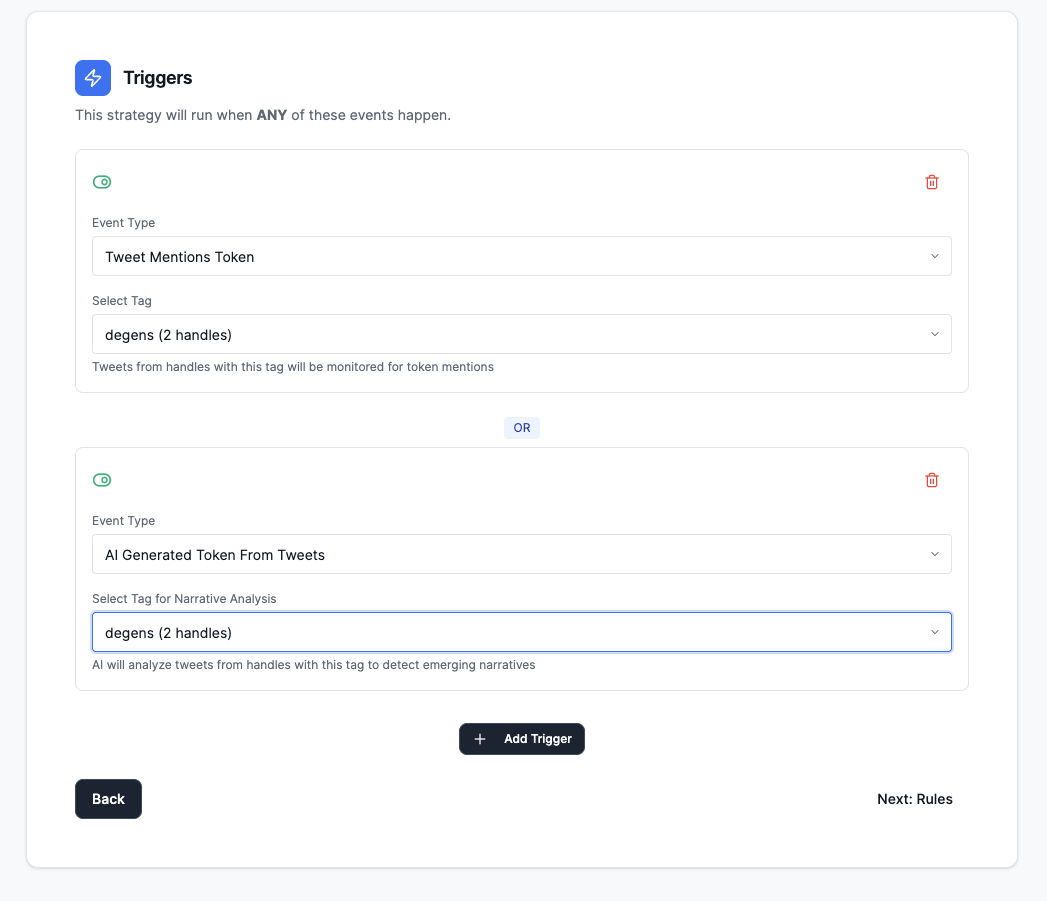
Tweet-based Triggers use tags from Twitter Handles to decide which authors to monitor.
Step 2: Select a Tag
- In the trigger configuration, find the “Select Tag” dropdown
- Choose from:
- “All Handles”: Monitor all handles in your Twitter Handles (shows total count)
- Tag Name: Select a specific tag to monitor only handles with that tag (shows handle count)
- The description below explains what will be monitored
- Select “degen-plays” tag → Strategy monitors tweets from all handles tagged as
degen-plays - Select “serious-alpha” tag → Strategy monitors tweets from all handles tagged as
serious-alpha - Select “All Handles” → Strategy monitors tweets from every handle in your Twitter Handles
Tags in Practice
Example Workflow: Creating Two Strategies
Scenario: You want to create two different strategies:- A “degen” strategy listening to high-risk meme accounts
- A “serious” strategy listening to respected devs/analysts
- Go to Twitter Handles
- Create tags:
degen-plays- for high-risk meme accountsserious-alpha- for respected developers and analysts
- Assign handles to appropriate tags:
- Add meme coin influencers to
degen-plays - Add technical analysts to
serious-alpha
- Add meme coin influencers to
- Create a new strategy
- In Step 2: Triggers, add trigger:
- Type: “Tweet Mentions Token”
- Tag: Select “degen-plays”
- Configure rules (Step 3) appropriate for high-risk tokens
- Save strategy
- Create another strategy
- In Step 2: Triggers, add trigger:
- Type: “Tweet Mentions Token”
- Tag: Select “serious-alpha”
- Configure rules (Step 3) appropriate for more established tokens
- Save strategy
- Both strategies run independently
- The “degen” strategy only monitors handles tagged
degen-plays - The “serious” strategy only monitors handles tagged
serious-alpha - You can add/remove handles from tags, and all strategies using those tags automatically update
Tweet Metadata Match
Uses tweets from selected handles as a signal source for deterministic token metadata matching. Use Cases:- discovering launches that line up with tracked tweets before a clean direct mention exists
- monitoring theme-specific accounts whose tweets often map to real launches
- catching tokens whose metadata clearly overlaps with the language or links used in a tweet
- The system stores tweet signals from handles in the selected tag.
- When a new token launches, it compares the token metadata against those stored tweet signals.
- A strategy can trigger when the overlap is strong enough.